ClientHub Documentation
Complete guide to Gia's built-in CRM — manage deals, contacts, organizations, and sales pipelines all in one place.
CRM1. ClientHub Overview
ClientHub is Gia's built-in CRM module. You can use it in two ways:
| Mode | How It Works |
|---|---|
| Gia as your CRM | Create and manage deals, contacts, and organizations directly inside Gia. No external tools needed. |
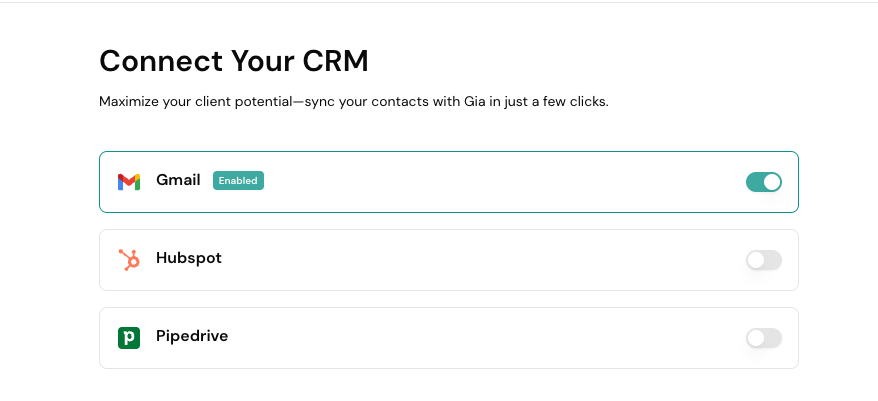
| Connect your existing CRM | Connect HubSpot or PipeDrive — your deals, contacts, and organizations sync into ClientHub automatically. |
Access ClientHub from the left sidebar navigation under Client Hub.
2. Deal Board
The Deal Board is a Kanban-style view that organizes all your deals by stage. Each column represents a stage, and each card represents a deal.
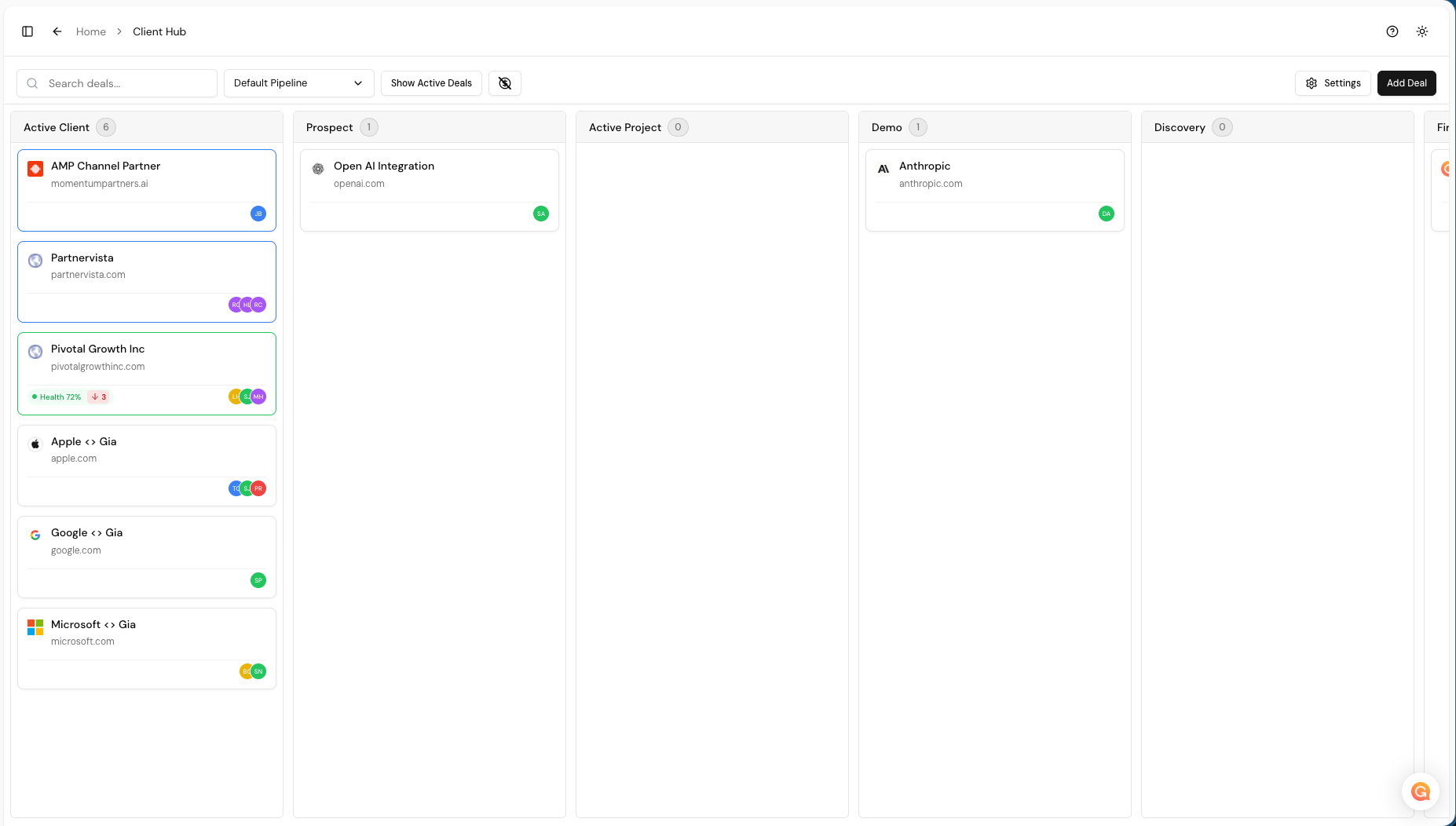
Each deal card displays the deal name, company name, website, and contact avatars. Use the toolbar to search, switch pipelines, or filter deals.
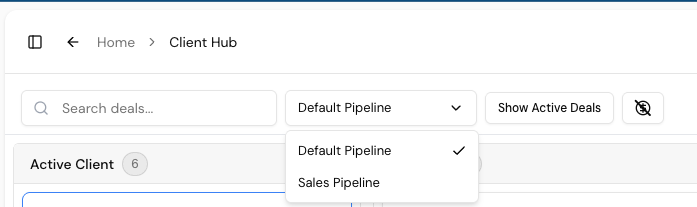
Deals move between stages by drag and drop on the board.
3. Creating & Importing Deals
There are three ways to add deals:
Option 1: Create Manually
Click + Create Deal on the deal board. Required fields: Deal Name, Company Name, Company Domain, First/Last Name, Pipeline, and Stage.
Option 2: Import via Excel
- Go to ClientHub → Settings → Integrations
- Scroll to Manual Import and click Download template
- Fill in your deal data using the template format
- Select the pipeline and upload the completed file
Option 3: Sync from a Connected CRM
If you've connected HubSpot or Pipedrive, your deals sync into ClientHub automatically.
4. Deal Detail View
Click any deal card to open its detail view. This is where you'll spend most of your time.
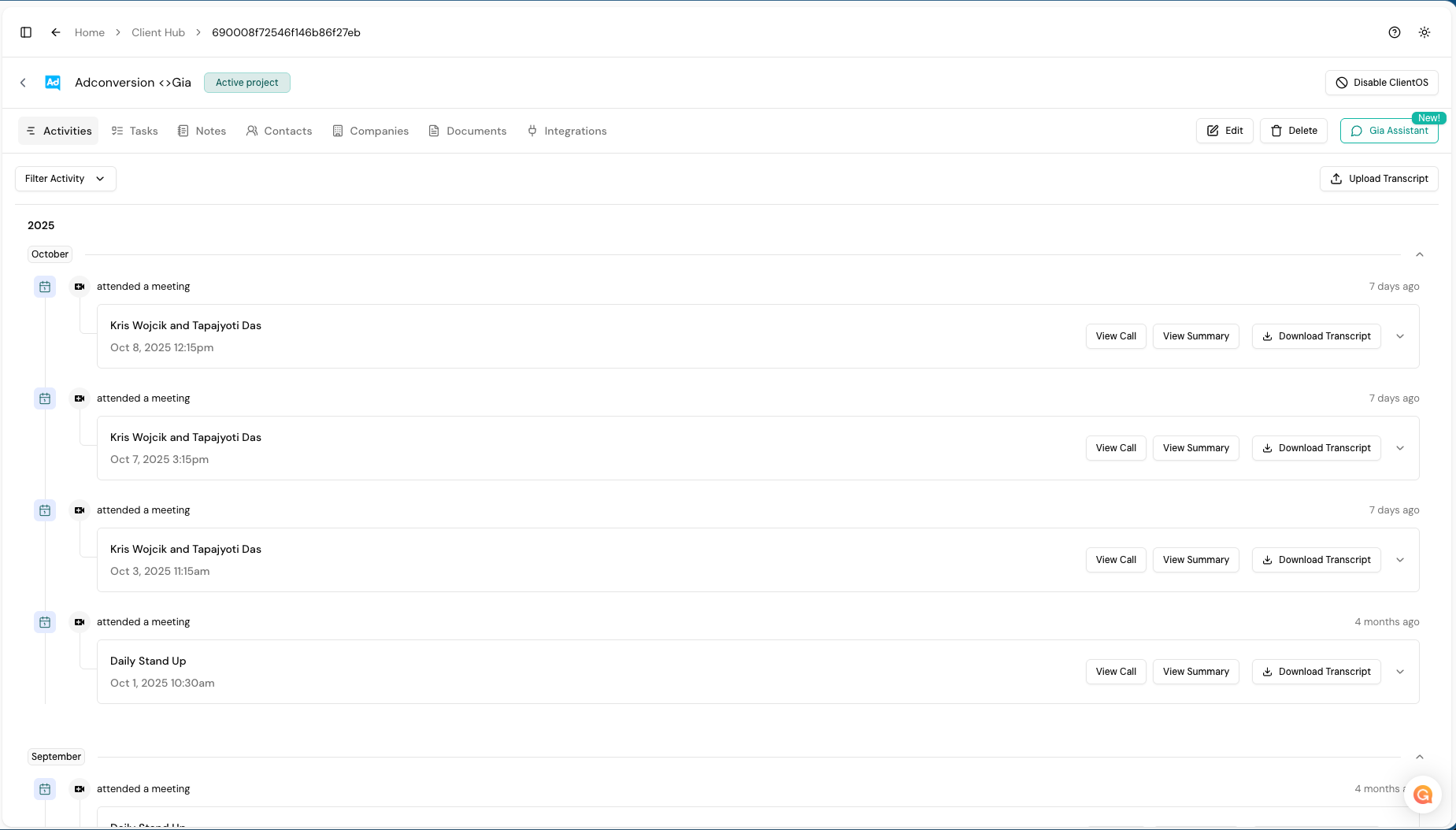
| Tab | What's Inside |
|---|---|
| Activities | Chronological timeline of all interactions — meetings, calls, research |
| Tasks | Manage tasks related to the deal |
| Notes | Add internal notes and context |
| Contacts | View and manage people associated with this deal |
| Companies | See the organizations linked to the deal |
| Documents | Access any documents tied to the deal |
| Integrations | Manage integrations specific to this deal |
Ask Gia (with ClientOS)
The Ask Gia panel on the right side lets you query your deal data. Suggested prompts:
- "What's the next step to move this deal forward?"
- "What objections are still unresolved?"
- "What's the overall health score and why?"
5. Contacts & Team Members
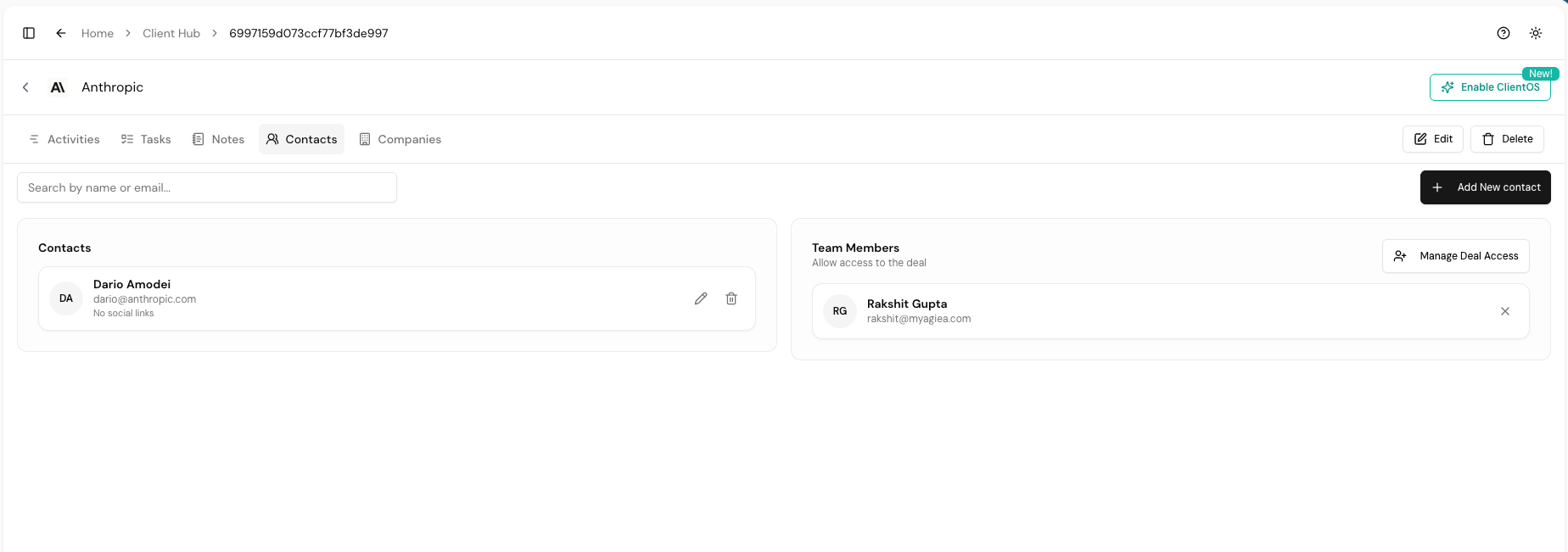
Contacts are external people linked to a deal. Team Members are internal people with access. Click Manage Deal Access to control which team members can collaborate.
6. Pipeline Management
Navigate to: Settings → Manage ClientHub → Pipeline Management
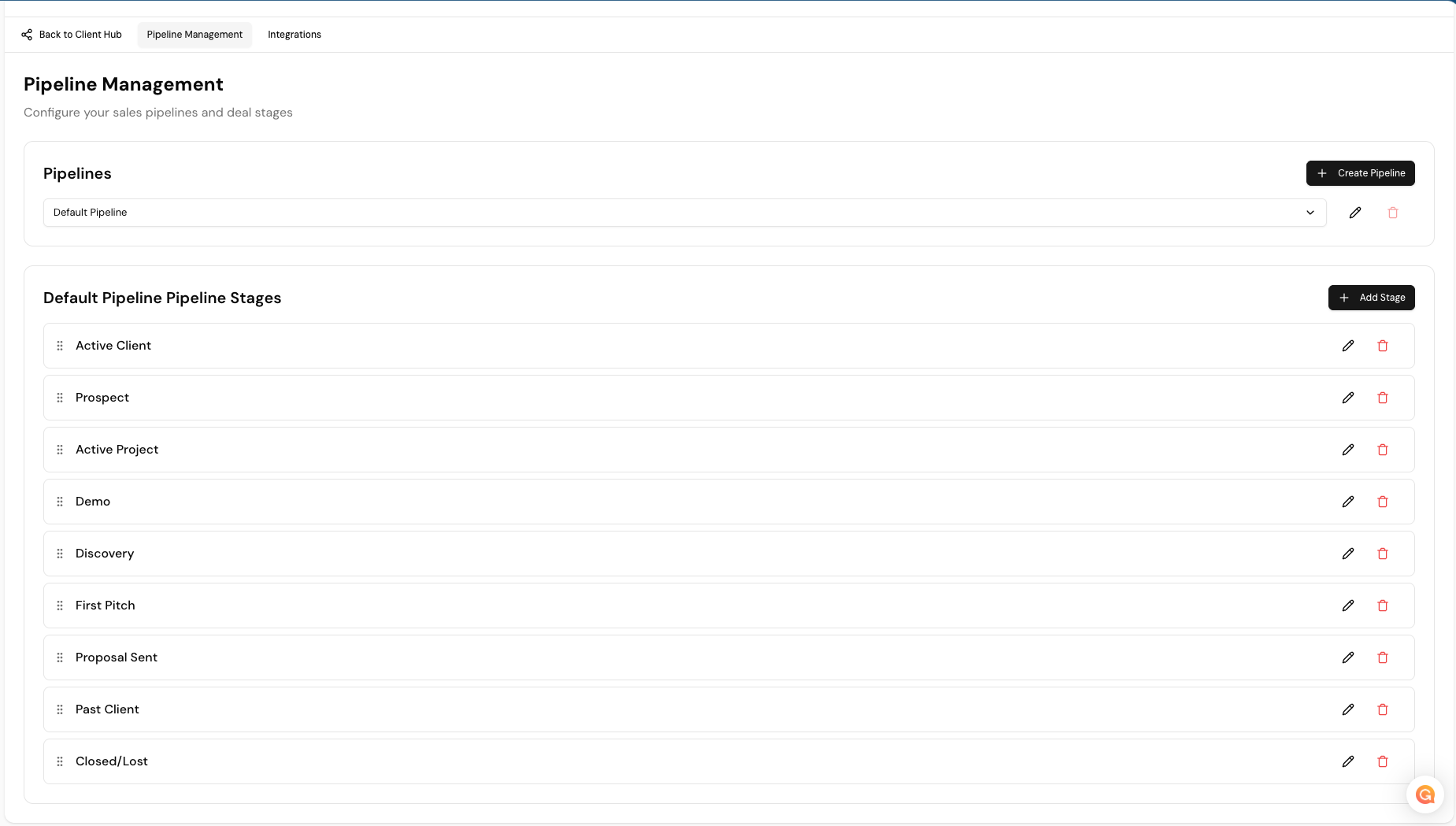
You can have multiple pipelines, each with its own stages. Default stages include: Active Client, Prospect, Active Project, Demo, Discovery, First Pitch, Proposal Sent, Past Client, and Closed/Lost. Use + Add Stage to customize.
7. CRM Integrations
Navigate to: Settings → Manage ClientHub → Integrations
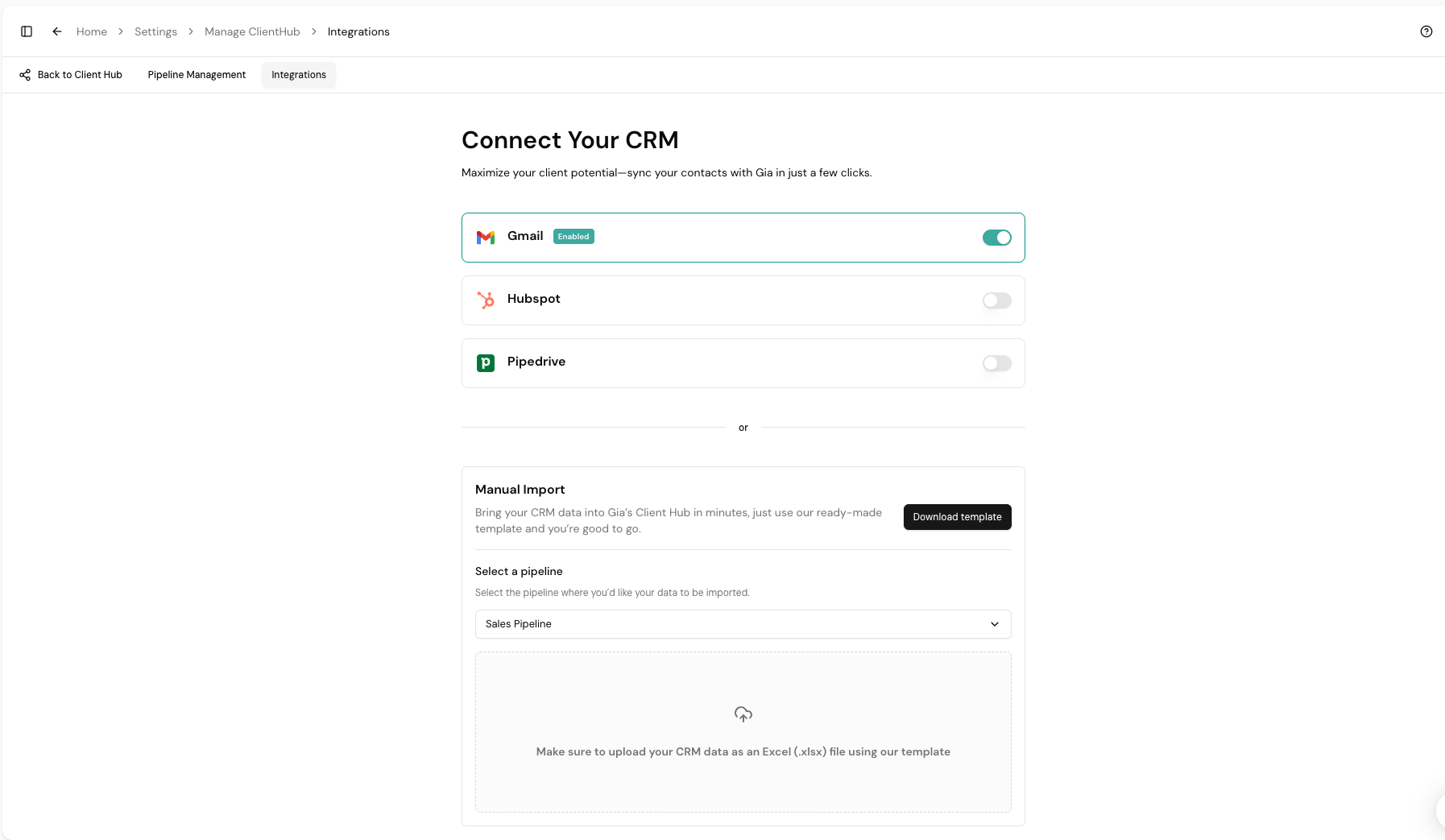
| Integration | What It Does |
|---|---|
| Gmail/Outlook | Communication tracking in deals (requires ClientOS) |
| HubSpot | Syncs deals, contacts, and organizations from HubSpot |
| Pipedrive | Syncs deals, contacts, and organizations from Pipedrive |
| Google Drive/SharePoint | Syncs documents related to deals |
Manual Import (Alternative)
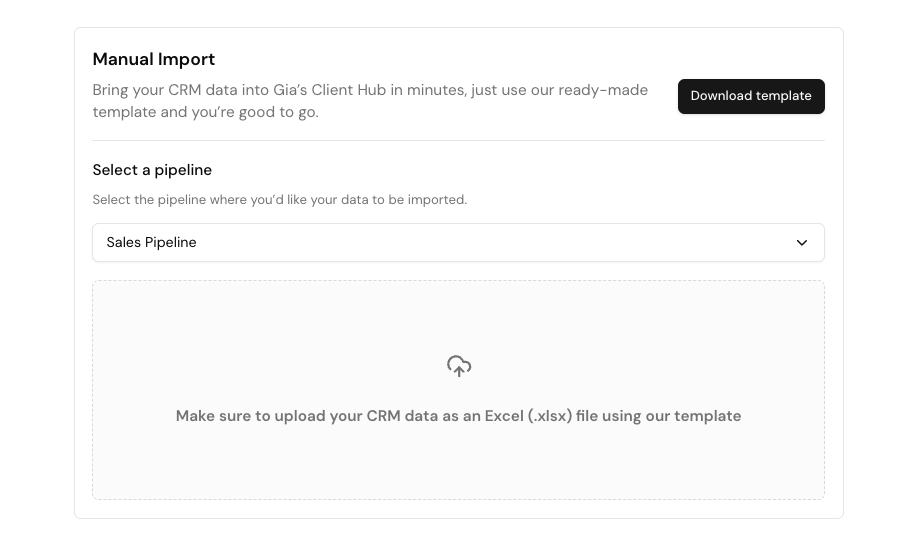
- Scroll to the Manual Import section
- Click Download template for the .xlsx file
- Fill in your deal data and select the pipeline
- Upload the completed file
8. ClientOS
ClientOS is an optional add-on you enable on individual deals for deeper AI intelligence.
To enable: Open a deal → Click Enable ClientOS (top-right)
What ClientOS Unlocks
| Integration | What Syncs |
|---|---|
| Gmail / Outlook | Emails with deal contacts appear in the deal timeline |
| Google Drive | Connect and access documents relevant to the deal |
| SharePoint | Access and link SharePoint documents to the deal |
Enhanced Ask Gia
With ClientOS enabled, Ask Gia can query across calls, emails, documents, and meeting transcripts. Example questions:
- "What was discussed in the last email with this client?"
- "Summarize the key points from our last three calls."
- "What documents have been shared with this contact?"
Setting Up Google Drive / SharePoint
- Open the deal → go to the Integrations tab
- Toggle on Google Drive or SharePoint
- Go to the Documents tab → Browse & Sync
- Browse folders, select the ones you want, and click Sync Selected
9. Quick Reference
| I Want To… | Go To… |
|---|---|
| View my deals | Client Hub (sidebar) |
| Create a new deal | Client Hub → + Create Deal |
| Manage pipelines & stages | Settings → Manage ClientHub → Pipeline Management |
| Connect a CRM or import deals | Settings → Manage ClientHub → Integrations |
| View deal details | Client Hub → Click on a deal card |
| Enable ClientOS | Deal Detail → Enable ClientOS button (top-right) |
Feature Comparison: Standalone vs. Connected CRM
| Feature | Gia as CRM | Connected CRM |
|---|---|---|
| Create deals manually | Yes | No (synced) |
| Import deals via Excel | Yes | No (synced) |
| Manage pipeline stages | Yes | No (synced) |
| Automatic call matching | Yes | Yes |
| Deal health score | Yes | Yes |
| Ask Gia assistant | Yes | Yes |
| Company research | Yes | Yes |